

What Is an Ergonomic Home Office Desk and Why Does It Matter?
An ergonomic home office desk is specifically designed to support your body during long work hours, minimizing strain on your neck, shoulders, back, and wrists. Setting up your workspace correctly in 2026 prevents chronic pain, improves focus, and increases productivity. Poor desk setup leads to repetitive strain injuries, headaches, and fatigue. When your desk aligns with your body’s natural posture, you work more comfortably and efficiently. The American Chiropractic Association emphasizes that proper ergonomics reduces musculoskeletal disorders by up to 50 percent.
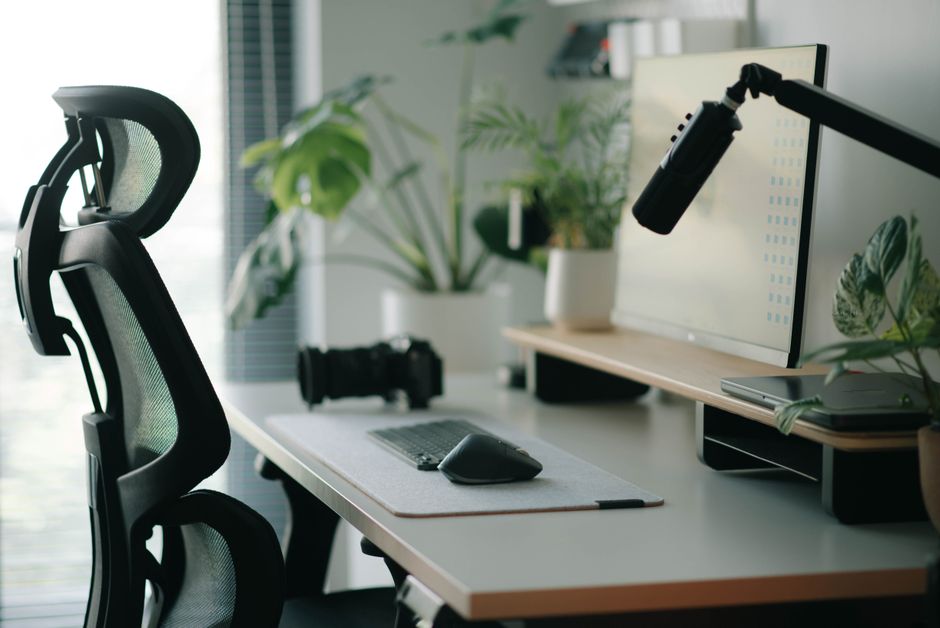
Most remote workers spend six to eight hours daily at their desks, making ergonomic setup non-negotiable. Your home office desk should accommodate your height, arm length, and viewing distance. Investing time in proper setup now prevents expensive medical bills and lost work time later. A well-organized ergonomic workspace also creates a professional environment for video calls and focused work.
Key Takeaway: Proper ergonomic desk setup prevents injury, reduces pain, and boosts your work performance significantly.
How Do You Determine the Ideal Desk Height for Your Body?
Desk height is the foundation of ergonomic setup. Your elbows should rest at 90 degrees when your arms hang naturally at your sides. Measure from the floor to your elbow while standing; this measurement guides your ideal desk height. Most standard desks measure 28 to 30 inches, but your body may require adjustments. Consider your height, arm length, and whether you use a keyboard tray.
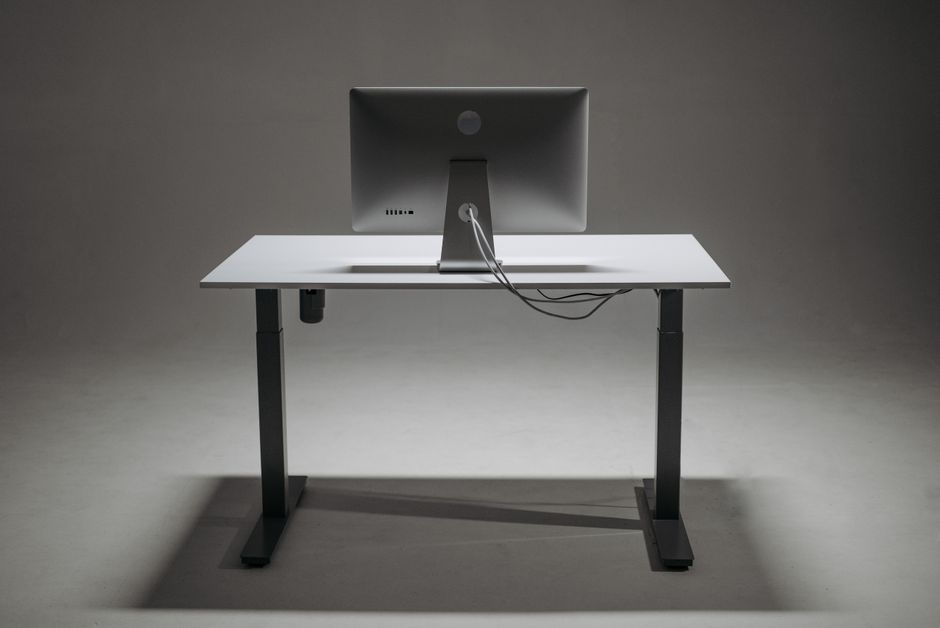
Adjustable standing desks have gained popularity in 2026 because they let you alternate between sitting and standing throughout the day. This movement reduces circulation problems and back strain. If you use a fixed desk, add a keyboard tray to raise your typing surface. Your wrists should stay neutral, not bent upward or downward.
Measuring Your Ideal Desk Height
- Stand with arms at your sides, elbows bent at 90 degrees.
- Measure from floor to the bottom of your elbow.
- Add one inch for cushioning and wrist rest space.
- This total is your target desk surface height.
If your calculated height doesn’t match standard desk sizes, use risers or desk extenders. Wooden furniture pads or adjustable desk legs solve height mismatches easily. Never compromise on this measurement because incorrect height causes shoulder and neck pain within weeks.
Key Takeaway: Calculate your ideal desk height based on your elbow position to prevent wrist and shoulder strain.
Where Should You Position Your Monitor for Optimal Viewing?
Monitor placement directly impacts your neck and eye health. Position your screen at arm’s length away—approximately 20 to 26 inches from your eyes. The top of your monitor should align with your eye level when sitting upright. This prevents you from tilting your head down, which causes neck strain and headaches. Your gaze should naturally fall to the upper third of the screen.
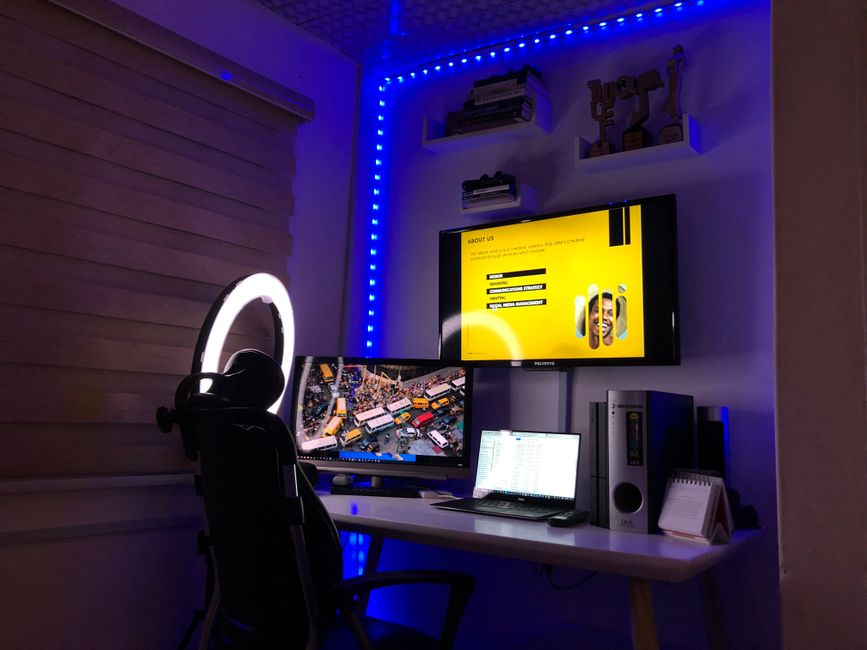
If you use multiple monitors, place them in a slight arc around your body. The primary monitor stays directly in front of you. Secondary monitors angle slightly outward so you don’t rotate your neck excessively. Ensure your screen is perpendicular to windows to avoid glare and reflections.
Monitor Setup Checklist
- Distance: 20 to 26 inches from your eyes.
- Height: Top of screen at eye level.
- Angle: Tilt screen slightly upward (10 to 20 degrees).
- Lighting: Position away from direct sunlight and overhead glare.
Use a monitor arm or adjustable stand to achieve the perfect height and angle. These tools free up desk space while giving you flexibility to reposition throughout the day. Anti-glare screen protectors reduce eye strain during extended screen time.
Key Takeaway: Position your monitor at arm’s length and eye level to protect your neck and reduce eye fatigue.
How Should You Select and Position Your Office Chair?
Your office chair is as important as your desk. Choose a chair with adjustable seat height, lumbar support, and armrests. Your feet should rest flat on the floor with your knees at 90 degrees. The seat depth should support your thighs without pressing against the back of your knees. Lumbar support should curve inward to support your lower back’s natural shape.

Armrests allow your shoulders to relax while typing. Your elbows should rest at 90 degrees on the armrests without hunching your shoulders. If your chair lacks proper support, add a lumbar pillow or memory foam cushion. Test the chair before purchasing; spend at least 15 minutes sitting to assess comfort.
Essential Chair Features for 2026
- Adjustable seat height (range: 17 to 21 inches).
- Lumbar support that matches your spine’s curve.
- Padded armrests at elbow height.
- Breathable mesh or fabric to prevent overheating.
- Five-point caster base for stability and mobility.
Invest in a quality ergonomic chair because you spend one-third of your day sitting. Budget 300 to 800 dollars for a chair that lasts five to seven years. Cheaper chairs often lack proper lumbar support and deteriorate quickly. Your health is worth the investment.
Key Takeaway: Choose an adjustable chair with lumbar support and proper armrests to protect your spine and shoulders.
What Lighting Setup Prevents Eye Strain and Fatigue?
Proper lighting is critical for reducing eye strain during long work sessions. Use a combination of ambient, task, and accent lighting. Ambient lighting provides overall illumination without harsh shadows. Task lighting, like a desk lamp, illuminates your work surface without creating glare on your screen. Avoid placing bright lights directly behind your monitor.
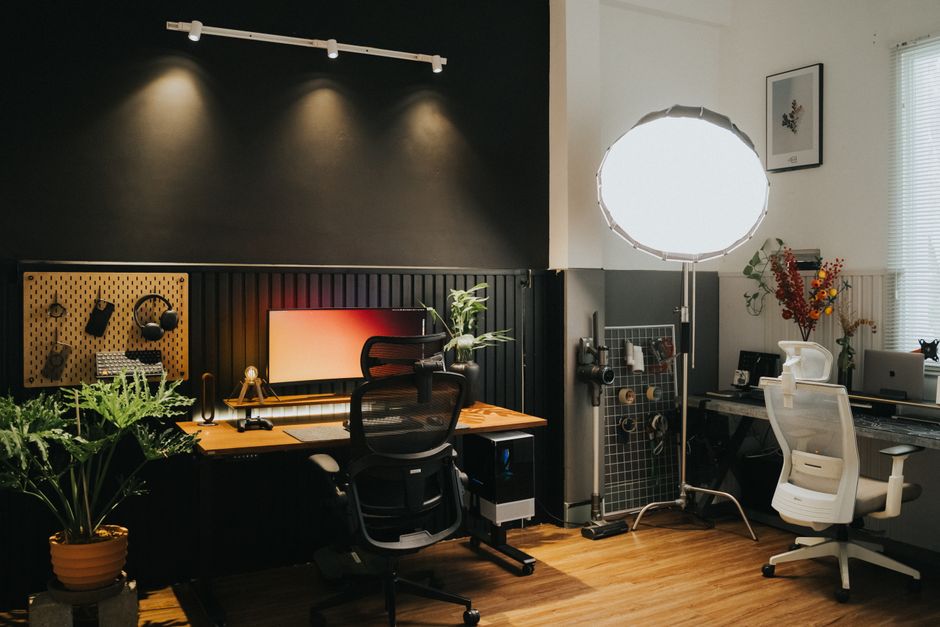
Natural light is ideal, but position your desk perpendicular to windows to avoid screen glare. Use adjustable blinds or curtains to control sunlight throughout the day. LED desk lamps offer flicker-free, color-corrected light that mimics natural daylight. Aim for 300 to 500 lux of illumination on your work surface.
Lighting Best Practices
- Position desk lamp to the side of your monitor, not behind it.
- Use 4000K to 6500K color temperature for daylight-like light.
- Include a desk lamp with adjustable brightness and direction.
- Keep ambient room lighting at consistent levels.
- Avoid fluorescent fixtures that flicker and cause headaches.
Consider the 20-20-20 rule: every 20 minutes, look at something 20 feet away for 20 seconds. This exercise reduces eye fatigue significantly. Blue light glasses can also minimize strain during evening work sessions.
Key Takeaway: Combine natural and task lighting while avoiding glare to protect your eyes and reduce fatigue.
How Do You Organize Cables and Accessories for a Clean Workspace?
Cable management affects both aesthetics and safety. Tangled cords create tripping hazards and make your desk look cluttered. Use cable clips, sleeves, or conduits to bundle wires along the desk edge or underside. Label each cable at both ends so you can identify them quickly. Keep frequently used items within arm’s reach to minimize stretching and strain.
For additional organization tips, check out our guide on how to hide cords behind a TV stand, which includes techniques applicable to home office setups. A clean desk reduces distractions and improves focus. Use desk organizers for pens, notepads, and small items.
Cable Management Solutions
- Cable clips: Secure individual wires to desk edges.
- Cable sleeves: Bundle multiple cords together neatly.
- Under-desk cable trays: Hide wires beneath your work surface.
- Velcro cable ties: Reusable and adjustable for frequent changes.
- Power strips with individual switches: Control multiple devices easily.
Route cables behind your desk or along the wall using adhesive clips. Keep your power strip within reach but out of sight. This setup prevents accidental cord damage and creates a professional appearance for video calls.
Key Takeaway: Organize cables with clips and sleeves to create a safe, professional, and distraction-free workspace.
What Additional Accessories Improve Ergonomic Comfort?
Beyond the desk, chair, and monitor, several accessories enhance ergonomic comfort. A keyboard and mouse positioned correctly reduce wrist strain and carpal tunnel risk. Your keyboard should sit at elbow height with your wrists in a neutral position. An ergonomic mouse supports your hand’s natural curve, reducing repetitive strain injuries. Wrist rests provide cushioning during typing breaks.
A footrest helps maintain proper leg positioning if your feet don’t rest flat on the floor. Anti-fatigue mats reduce leg and lower back strain if you use a standing desk. A document holder positions reference materials at eye level, eliminating neck rotation. These small additions significantly improve comfort during eight-hour workdays.
Top Ergonomic Accessories for 2026
- Ergonomic keyboard: Splits or curved design to reduce wrist strain.
- Vertical mouse: Neutral grip position prevents pronation injuries.
- Wrist rest: Gel or memory foam cushioning for keyboard and mouse.
- Footrest: Adjustable platform for proper leg support.
- Document holder: Positions papers at eye level next to monitor.
- Desk pad: Cushioned surface protects elbows and wrists.
Test accessories before committing to them. Everyone’s body is different, so what works for colleagues may not suit you. Start with basic ergonomic items and add specialized accessories as needed.
Key Takeaway: Ergonomic accessories like keyboards, mice, and wrist rests prevent repetitive strain injuries and boost comfort.
How Do You Create an Ergonomic Standing Desk Setup?
Standing desks offer health benefits by reducing sedentary time. Alternate between sitting and standing every 30 to 60 minutes to avoid leg fatigue. When standing, maintain the same ergonomic principles as sitting: elbows at 90 degrees, monitor at eye level, and neutral wrist position. Wear supportive shoes with cushioning to reduce foot and leg strain during standing periods.
Adjustable standing desks let you switch heights easily without manual adjustment. Electric models move smoothly at the push of a button. Mechanical models require manual cranking but cost less. An anti-fatigue mat cushions your feet and reduces lower back strain while standing. This mat encourages subtle weight shifts that improve circulation.
Standing Desk Setup Tips
- Invest in a quality anti-fatigue mat with at least 0.5 inches of cushioning.
- Wear supportive, cushioned shoes during standing periods.
- Alternate sitting and standing every 30 to 60 minutes.
- Maintain the same monitor height and distance as your seated position.
- Position keyboard and mouse at elbow height when standing.
Standing desks cost 300 to 2000 dollars depending on features and materials. Start with a budget-friendly manual model to test the concept. If you enjoy standing work, upgrade to an electric model for convenience. The health benefits justify the investment for long-term home office users.
Key Takeaway: Standing desks reduce sedentary time when used correctly with proper posture and regular position changes.
What Practical Steps Should You Take to Implement Your Ergonomic Setup?
Creating an ergonomic home office desk requires planning and gradual implementation. Start by measuring your body dimensions and current desk setup. Document your findings to guide purchases and adjustments. Take before-and-after photos to track your progress. Set a budget for essential items first, then add accessories as needed.
Step-by-Step Implementation Plan
- Step 1: Measure your height, arm length, and elbow position to determine ideal desk height.
- Step 2: Adjust or replace your desk to match your calculated height.
- Step 3: Position your monitor at arm’s length and eye level.
- Step 4: Select and position an ergonomic chair with proper lumbar support.
- Step 5: Install task lighting to eliminate glare and eye strain.
- Step 6: Organize cables using clips, sleeves, or under-desk trays.
- Step 7: Add ergonomic accessories like keyboard, mouse, and wrist rests.
- Step 8: Test your setup for one week and make adjustments as needed.
Don’t try to implement everything at once. Gradual changes help you identify which adjustments provide the most comfort. Spend at least one week in your new setup before making additional changes. Track your pain levels and energy throughout the day to measure improvement.
Key Takeaway: Implement ergonomic changes gradually, starting with desk height and monitor position, then adding accessories.
How Can You Maintain Your Ergonomic Setup Long-Term?
Maintaining your ergonomic setup ensures lasting comfort and prevents injury. Schedule monthly reviews of your desk configuration. Check that your monitor hasn’t drifted from eye level. Verify that your chair’s lumbar support still feels supportive. Replace worn cushions or wrist rests that lose their padding. Clean your keyboard and mouse to prevent dust buildup that affects functionality.
As you age or your body changes, your ergonomic needs may shift. Annual evaluations help you catch problems early. If you experience new pain or discomfort, adjust your setup immediately. Consult a physical therapist or ergonomic specialist if pain persists despite adjustments. Professional guidance ensures your setup matches your current body needs.
Key Takeaway: Review and maintain your ergonomic setup monthly to ensure lasting comfort and prevent injury development.
What Final Steps Complete Your Ergonomic Home Office in 2026?
Completing your ergonomic home office involves attention to detail and personalization. Your workspace should support your body while reflecting your professional style. Ensure your setup accommodates all your work tasks, from typing to video calls. Test your configuration thoroughly before committing to it. Remember that perfect ergonomics requires ongoing adjustment as you learn what feels best.
Consider complementary organization solutions for your entire home office. If you need storage, explore our guide on how to anchor a bookshelf to the wall safely for secure shelving. A well-organized, ergonomic workspace boosts productivity and protects your health. Invest in quality equipment now to avoid expensive health problems later. Your home office is where you spend significant time, so make it count.
Key Takeaway: Complete your ergonomic setup with proper organization and personalization to create a productive, healthy workspace.
Frequently Asked Questions
What is the ideal desk height for a 5’10” person?
For someone 5’10”, the ideal desk height is approximately 28 to 30 inches. Measure from floor to your elbow while standing with arms at your sides. Add one inch for wrist rest space. This calculation accounts for individual arm length variations. Adjustable desks allow you to fine-tune this measurement for maximum comfort.
Can I use a regular dining table as an ergonomic desk?
Most dining tables are 30 to 32 inches high, which may be too tall for ergonomic typing. You’d experience wrist and shoulder strain. Use a keyboard tray to lower your typing surface to elbow height. Alternatively, use a monitor arm to raise your screen. A dedicated ergonomic desk is preferable, but proper accessories can adapt a dining table temporarily.
How often should I switch between sitting and standing?
Alternate between sitting and standing every 30 to 60 minutes. Start with shorter standing intervals (15 to 20 minutes) and gradually increase as your legs adjust. Listen to your body; if your feet or back hurt, sit down. The goal is movement variety, not prolonged standing. This rhythm reduces sedentary time while preventing fatigue.
What should I do if I experience neck pain despite proper setup?
Neck pain may indicate your monitor is still too high or far away. Adjust it to eye level at arm’s length. Check your chair height and lumbar support. Take frequent breaks using the 20-20-20 rule. If pain persists after two weeks of adjustments, consult a physical therapist or chiropractor. Professional evaluation identifies underlying issues your setup adjustments might miss.
Is an ergonomic keyboard worth the investment?
Yes, ergonomic keyboards reduce wrist strain and carpal tunnel risk, especially for heavy typists. They cost 50 to 150 dollars but prevent expensive medical treatment. Standard keyboards force your wrists into awkward positions during extended typing. An ergonomic keyboard maintains neutral wrist alignment. The investment pays off through reduced pain and increased productivity.
How do I know if my ergonomic setup is working?
You should experience no pain or discomfort during eight-hour workdays. Your energy levels should remain consistent throughout the day. You should feel alert during video calls without neck strain. Track your pain levels daily for one week. If discomfort decreases significantly, your setup is working. Persistent pain indicates the need for further adjustments or professional consultation.
Conclusion: Is Your Home Office Desk Truly Ergonomic?
Setting up an ergonomic home office desk in 2026 requires attention to desk height, monitor position, chair quality, lighting, and accessories. Start by measuring your body to determine ideal dimensions. Position your monitor at eye level and arm’s length to protect your neck. Choose a chair with adjustable lumbar support and armrests. Add proper lighting to eliminate eye strain. Organize cables for a clean, professional workspace. Test your setup for at least one week before making additional changes. Remember that ergonomic setup is personal; what works for others may need adjustment for your body. Invest in quality equipment now to prevent expensive health problems later. Your home office is where productivity happens, so make it count with proper ergonomic design.




Write Your Review
No reviews yet. Be the first to share your experience!